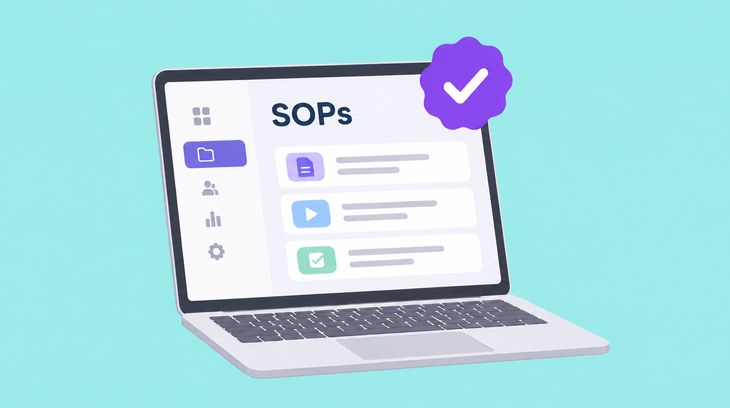
The best SOP software may support different combinations of SOP creation, management, training, and execution tracking. Let’s say the return process changes on Tuesday. The person responsible for it updates the steps once, and staff see the new version the next time they open the procedure. The old version stays in the history instead of floating around in someone’s downloads folder. That’s the basic job of SOP software.
In this article, we compare tools for creating, sharing, and tracking SOPs. We also cover the features worth paying attention to and how to choose based on what is currently going wrong with your procedures.
Key takeaways Dedicated SOP software becomes worthwhile when documents are no longer enough. A team may need one approved version, in-app guidance, a record of every completed step, or training that employees cannot quietly skip. Match that need first. Feature counts matter less than whether the tool fits the work.
What is SOP (Standard Operating Procedure) software? SOP software is a shared system for the standard operating procedures that people use at work. Writing the steps. Replacing an old screenshot. Publishing the new version. Removing access from someone who no longer needs it. SOP management software handles the ordinary work around a company’s procedures.
It’s useful anywhere the same work needs to be done consistently, from a small company hiring its first employees to an operation spread across several locations. Operations and quality teams are common users, along with HR and L&D. Small business owners, compliance teams, and companies with employees across several sites can also benefit.
SOP software vs. Google Docs, Notion, and knowledge bases If there are six people on the team and everyone knows where the “How we process refunds” document lives, Google Docs may be all you need. Notion or a knowledge base can serve a team quite well, too. The need for SOP tools usually shows up when someone follows an old copy, a required update goes unread, or an auditor asks who approved the procedure.
For example, Synerglass-Soft mostly used familiar training formats: PowerPoint presentations, shared documents, emails, recorded training sessions, and live knowledge transfer. The company improved how it organizes and delivers training after moving to iSpring.
Best SOP Software at a Glance Tool Best for Starting price Mobile/offline iSpring LMS Turning SOPs into assigned training with quizzes and completion records $4.46/active user/month; 30-day trial Mobile app and offline learning Scribe Creating visual SOPs automatically from recorded screen workflows Free Plan; Pro $13/user/month Mobile creation ; offline PDF Tango Guiding employees through software tasks inside the application Free Plan; Pro $15/user/month Mobile viewing only Way We Do Managing SOP ownership, reviews, approvals, and version history $99/month for 10 users; free trial Responsive mobile web ; offline not listedProcess Street Running recurring SOPs as workflows with owners, deadlines, and approvals Quote-based; 14-day trial Mobile apps; online only CheckFlow Tracking every step of repeatable checklists, including approvals and sign-offs $10/user/month; 14-day trial Mobile web; online only SweetProcess Managing detailed SOPs, policies, approvals, workflows, and assigned tasks in a single tool $495/year for 5 users; 14-day trial Mobile app ; offline PDF/Word export
The 7 best SOP software tools in 2026 1. iSpring LMS — Best for turning SOPs into trackable employee training Overview With iSpring LMS , the SOP itself can become the training. Send it to the right employees, add a short quiz, and check the completion report. Employees can revisit procedures in the iSpring LMS Knowledge Base, where AI-powered search helps them find answers across articles and uploaded documents.
There’s no need to build the course from zero. AI works from the source files, and iSpring Suite AI handles screen recordings, narration, automatic captions, role-plays, and quizzes.
SOPs live in the same system as the training built around them. Managers get actual completion and assessment records. Desk-based and frontline teams both benefit from iSpring training. A good fit for both simple SOP courses and richer training with demonstrations, practice, or assessment. iSpring does not provide step-by-step capture. iSpring LMS supports observation checklists and on-the-job training assessments, but it is not primarily designed to execute recurring operational workflows with automated handoffs, task dependencies, and approval routing. For a small team with a few simple procedures and no need for formal training records, a full LMS may be more than they need. Best for:
Best for larger teams that do not want SOPs to stop at “read this document.” iSpring gives people a place to find guidance, while the more important procedures can become proper training with quizzes, assignments, and refresher courses later on.
Key features:
AI-assisted course creation. The SOP becomes the source for a course draft, along with any supporting files. Authors only need to review and finish it. Ensure that subject matter experts review sensitive data and prove it’s valid.Assignments and learning paths. Courses can go to a department, job role, site, or selected group. New hires can be enrolled automatically through configured enrollment rules. Permissions let several administrators share the work.Quizzes and assessments. A completed course does not have to be the end of the story — you can check whether the procedure was actually put into practice.Reporting and completion records. Managers can track progress, scores, and overdue training without pulling everything together manually.Mobile and offline learning. Courses are available in the mobile app and can be completed offline when needed.Pricing: Current pricing starts at $4.46 per active user per month for 300 users. An Enterprise plan is available. A 30-day free trial is offered.
iSpring LMS is a good fit when an SOP needs to become assigned, trackable training rather than remain a reference document. For example, Forever Direct uses iSpring LMS to train warehouse staff on safety procedures and reported a 50% drop in accidents after introducing the training alongside coaching and other safety measures.
for your mission-critical project
2. Scribe — Best for automatic SOP creation from software workflows Overview For teams that keep putting off SOP writing, Scribe is a practical shortcut. Record the process, perform the job as usual, and the tool will build a visual guide from what you did. Browser workflows are covered by the extension, with desktop capture available on paid plans. AI assistance helps turn those captured steps into something closer to a finished SOP.
Creates a visual guide while you do the task. Screenshots and step descriptions appear automatically. The AI-powered SOP generator can help turn basic captures into more complete documentation. Best suited to on-screen processes. It isn’t built to run an SOP as a recurring operational workflow. SOP approvals, training flows, and completion tracking aren’t its main focus. Best for:
Teams with lots of software how-tos to document, especially when employees already know the process but nobody has time to start with a blank page and write each step manually.
Key features:
Automatic process capture. Scribe records clicks as someone works and builds the work instructions around them.Screenshots and editing. Captured images can be annotated, edited, or redacted before the guide is shared.Scribe AI. The AI can draft process documentation and add context around captured guides instead of leaving authors with a sequence of clicks.Sharing and exports. Guides can be shared by link or embedded; paid plans add PDF, HTML, and Markdown export.Pricing: Scribe has a free Basic plan. Pro Team starts at the equivalent of $13 per seat per month , with annual billing and a five-seat minimum.
An ideal use case is when an operations specialist needs to document a CRM or reporting process that has 30 clicks and several screens. They run through it once and then clean up the generated guide instead of recreating the entire process from memory.
3. Tango — Best for creating software SOPs with in-app guidance Overview Tango captures software processes and turns them into visual guides. Users with access to compatible workflows can follow them using Guide Me, which highlights steps directly in Chrome or Edge. Enterprise plans add advanced in-app guidance and deployment capabilities.
Guide Me walks users through steps on screen. Employees can follow instructions without leaving the application. Includes viewer and completion insights on paid plans. The strongest use case is software work rather than physical procedures. Guide Me needs the browser extension and does not work with desktop captures. It is not a full SOP training or process-management system. Best for:
Teams that already have documented software processes but still get the same questions about where to click or what to do next.
Key features:
Browser and desktop capture. Tango records processes in web applications, with desktop capture available with paid plans.Guide Me. The guide opens beside the application and highlights each step as the employee works through it.AI-generated content. The AI can help fill out and refine captured documentation.Viewer insights. Teams can see how their internal workflows are being viewed and completed.Version history. Pro keeps 14 days of history, while Enterprise extends this to 365 days and adds audit logs.Pricing: Tango is a free tool for up to five shared workflows. Pro starts at $15 per user per month .
If a company rolls out a new CRM and employees keep getting stuck in the same places, Tango can turn those processes into guides they can follow while working within the system.
4. Way We Do — Best for managing controlled SOPs and review cycles Overview Way We Do is less concerned with getting an SOP written fast. Its job starts once the SOP exists: tracking ownership, reviews, permissions, past versions, and the move from draft to publication.
Strong version history and review controls. Scheduled reviews help keep old procedures from quietly staying in use. Employees can acknowledge procedures and policies. Capture is quite manual The entry plan starts with 10 team members, which may not suit very small teams. It is less focused on course-style training and assessment. Best for:
Businesses where someone needs to own each SOP, review it regularly, and keep a clear record of what changed and which version employees should be using.
Key features:
Version history. Changes are stored with the editor, date, document status, and version number, and earlier versions can be restored.Review workflow. Editors can work on a draft without affecting the live procedure and invite colleagues to review changes before publication.Revision schedules. SOP owners can set recurring review dates and receive reminders when a procedure is due for another look.Acceptance records. Employees can acknowledge a procedure, and the system keeps their acceptance history.Role-based access. Procedures can be assigned or restricted according to employees’ roles.Activated Checklists. A controlled procedure can also become a repeatable checklist with mandatory steps, dependencies, collaborators, and supervisor sign-off.Pricing: The Entry plan costs $99 per month for 10 team members , with additional users added in groups of 10. A free trial is available.
Ideal for a growing company that has dozens of procedures owned by different departments and needs to know which ones are overdue for review rather than discovering an outdated SOP after someone follows it.
5. Process Street — Best for tracking recurring SOP execution Overview Process Street combines recurring workflow execution with controlled documentation through its Ops and Docs capabilities. Teams can manage SOPs and policies, convert procedures into executable workflows, and track approvals and completion records. Its broader functionality may be unnecessary for teams that only need simple visual instructions.
It tracks each individual run of a recurring process. Process Street handles assignments, deadlines, approvals, and branching. The AI can create a workflow from a prompt or existing document. It doesn’t automatically capture a software workflow from the screen. It’s more workflow-oriented than traditional document-oriented SOP software. Pricing is not published. Best for:
Repeat processes that need active oversight, not just written instructions.
Key features:
Workflow runs. One master workflow can be used repeatedly, with a separate record for every run.Process AI. Start with a prompt or an existing SOP. The AI turns it into the first version of a working process.Conditional logic. The workflow can branch when the situation does.Assignments and due dates. Tasks can move between people or roles with deadlines attached.Mobile apps and integrations. Process Street has iOS and Android apps and connects with tools like Slack, Microsoft Teams, Zapier, and Power Automate.Pricing: Not published. The Pro plan includes a 14-day free trial.
A monthly compliance check has 20 steps split between operations, finance, and a manager who gives final approval. Process Street keeps each month’s run separate and shows where the process is waiting.
6. CheckFlow — Best for tracking step-by-step process completion Overview CheckFlow is built around a simple idea: take a repeatable checklist and keep a record of every time somebody runs it. A template remains the standard process, while each new checklist shows who completed each step, when they did it, and what information they entered along the way.
A clear record of who completed each step and when. Recurring checklists work well for routine operational processes. Guest users can participate without paid seats. More checklist-focused than document-focused. Less suitable when the main need is rich, long-form process documentation. No permanent free plan. Best for:
Teams that already know what the process should be and mainly need to make sure the same steps occur each time.
Key features:
Recurring checklists. A fresh run can start automatically on a schedule.Enforced order. Certain steps can be blocked until the required earlier work has been completed.Assignments and due dates. Individual steps can go to different people or groups.Approval gates and sign-offs. A process can be paused until an assigned reviewer approves the work. Formal e-signatures require an embedded or integrated tool.Template versioning. Every saved version is retained and can be rolled back.Reports and exports. Managers can review checklist data and export completed work when they need to keep a record elsewhere.Pricing: Starts at $10 per user per month , or the equivalent of $9 per month billed annually. A 14-day free trial is available.
CheckFlow fits repeatable work where consistency matters, from opening procedures to routine quality checks. The template stays put, and it records every completed run.
7. SweetProcess — Best all-around dedicated SOP software Overview SweetProcess follows an SOP from the rough draft to the employee who has to use it. Teams can record browser steps, write SOPs, combine procedures into workflows, manage approvals, and keep old versions. You can assign the finished SOP and follow it with a knowledge check. SweetAI provides the first draft.
Covers SOP creation, knowledge management, execution, and knowledge sharing in a single product. Procedures can become recurring tracked tasks rather than remaining as static documents. Includes AI drafting and browser-based process capture. It doesn’t provide an in-app walkthrough experience. There is no permanent free plan. A very small team with only a few SOPs may not need the full feature set. Best for:
Growing businesses that want a single dedicated system for procedures, policies, process documentation, and the recurring work built around them.
Key features:
SweetAI. AI can suggest procedures, write a first draft, and revise existing SOP content from a prompt.Workflow capture. The Chrome browser extension records browser activity and turns it into an editable procedure with screenshots.Procedures, policies, and processes. Teams can keep individual instructions together with higher-level policies and multi-step workflows.Version history and approvals. Changes remain visible, older versions can be restored, and drafts can go to a manager before becoming the live version.Knowledge bases. Existing SOP content can be published as a private or public searchable knowledge base.Process maps. Procedures and processes can be viewed as flowcharts.Integrations and mobile access. SweetProcess connects with other business tools and has a mobile app for employees who are away from their desks.Pricing: SweetProcess costs $99 per month for up to 10 users, or $990 per year. The Small Team plan costs $495 per year for up to five users. All plans include the same features and a 14-day free trial.
When procedures are split between legacy documents and the people who know how things actually work, SweetProcess brings them together. The team can update, assign, track, and document processes.
Are there any best industry-specific SOP software options? A restaurant group and a bank may both need SOP software, but for different reasons. iSpring LMS or SweetProcess can keep training consistent across restaurant shifts and locations. Process Street or Way We Do can document the approvals a bank needs. Dozuki serves manufacturing teams on the floor. In healthcare, Way We Do adds control and iSpring LMS handles formal training. Agencies can use Scribe, Tango, or SweetProcess to capture a work process before it remains siloed in the hands of a single employee.
Why traditional SOPs get ignored and how to make SOPs that employees actually use An SOP is usually opened in the middle of something. A customer is waiting. A machine has stopped. A new employee is trying to finish a task without calling the supervisor again. That is a bad time to search through folders or read a page of background information. It’s even worse when the instructions no longer match what’s on the screen.
Most employees open an SOP because they need an answer, usually right now. Lead with it. Use short steps and a screenshot where it saves a paragraph. Say when the procedure applies and what finished looks like. Keep it beside the work, with an owner and review date. Record and track completion when it matters.
How to choose the right SOP software The longest feature list won’t necessarily solve the problem. Match the tool to what is going wrong now:
Slow SOP creation → Automatic capture and AI draftingUnused procedures → In-app instructions available during the taskDifficult onboarding → Assigned training, quizzes, and progress recordsRegulatory compliance requirements → Version control, permissions, audit logs, and team training historySkipped process steps → Workflows, checklists, approvals, and remindersFrontline work → Mobile access and offline useSmall team or tight budget → Free plans and lightweight toolsKey features to look for in SOP software The real test comes when someone needs instructions in the middle of a busy shift. The SOP has to be easy to open, but it also needs to be easy to create and update.
A quick way to get the first draft down. Screen capture should record the task as someone does it, including clicks and screenshots. If cleaning up the screen recording takes hours, it hasn’t saved much time.AI that doesn’t take over. It can organize rough steps or shorten a wordy draft. Every line should still be easy to rewrite.Templates you can change. A safety procedure won’t look like a two-minute software walkthrough. The format needs to accommodate different types of procedures.Search that works with half-remembered words. Employees rarely know the exact title. They may type “refund” when the SOP is called “processing a customer return.”A version history that people can follow. It should be clear which copy is current, what changed, and who changed it.Instructions beside the work. In-app guidance lets employees check a step without leaving the screen they’re using.A clear record of completion. Managers need to see who received a required SOP, who finished it, and who hasn’t opened it.Sensible access controls. Not everyone needs permission to edit payroll, safety, or compliance procedures.Connections to the tools already in use. Employee accounts and training records shouldn’t have to be entered twice.Phone and offline access. An SOP still needs to open in a storeroom, on a job site, or anywhere else with a weak signal.Reports with useful details. Look for failed searches, overdue assignments, and procedures that employees keep opening because something may be unclear.Final thoughts The best SOP software should solve the problem your team is currently facing. If that problem is training employees and keeping completion records, iSpring LMS is worth a look. Use the free trial to build one short SOP course and test it with a small group.
FAQ What is the best SOP software? No tool wins for every team. Scribe is strong at turning screen activity into a guide, while iSpring LMS is built for SOPs that need to become assigned training. Way We Do suits controlled documents, and Process Street or CheckFlow make more sense when you need to track each run of a process.
What is the best free SOP software? A small team may not need a dedicated SOP digital platform yet. Google Docs or Notion can handle a few simple procedures at little or no cost. Scribe is a good free starting point if documenting procedures manually takes up the most time.
Can I use Notion or Google Docs for SOPs? Google Docs and Notion work well to create SOPs that people only need to check occasionally. They get awkward when a procedure needs approval, a review date, or a completion record. Those jobs usually end up scattered across email and spreadsheets.
Which SOP software automatically records a process? Scribe, Tango, and SweetProcess turn a browser process into step-by-step instructions. The difference is what happens next: Scribe documents it, Tango guides the employee through it, and SweetProcess stores it with the rest of the company’s processes.
How do you keep SOPs up to date? Someone should own each SOP. Staff reports what has changed, the owner updates the published copy, and the system keeps the old version. A folder full of “final,” “final 2,” and “latest” files is how outdated instructions end up being used again.
What SOP software is best for compliance? The best SOP software for compliance depends on the evidence required. iSpring LMS suits assigning mandatory training, assessing understanding, and retaining learning records. Organizations that also need controlled SOP revisions, approval workflows, audit trails, or documented execution should evaluate dedicated document-control and workflow tools alongside their LMS.
How can you track whether employees complete SOPs? If employees repeat the procedure, track the work itself. Process Street and CheckFlow create a new run each time and record who completed every step, when it happened, and where the process stopped.
How much does SOP software cost? Look at the minimum bill, not only the per-user figure. A low seat price can still come with a five-seat minimum, while a flat team plan may be cheaper once more people join. For this article, we’ve chosen the best SOP software; most offer free trials or a free tier.
 19 min
 19 min




 19 min

